How to Create a WAX Token
Deploy a token contract to your own WAX account, then create and manage your token. You hold the only key.
This guide takes you from nothing to a working token on the WAX blockchain. No coding, no command line. Read it start to finish before you begin — two of the choices you make are permanent, and it is much easier to get them right the first time than to launch a second token because the first one had 2 decimal places.
What you will end up with: a token contract running on your own WAX account, a token with a ticker and supply you chose, and the ability to send it to anyone. Roughly 15 minutes, most of which is waiting for two wallet confirmations.
Before you start you need three things: a WAX account you control, about 500 KB of free RAM on it, and enough WAX staked to CPU and NET. The Contract tab checks all of this for you and tells you exactly what is missing — you do not need to work it out yourself.
Step by step
- 1
Understand what you are about to own
MintyBlocks does not host your token. You deploy a copy of a standard token contract onto YOUR OWN WAX account, and from that moment you are its only authority. We cannot pause it, freeze it, issue your token, change your supply, upgrade the code, or recover anything if you lose access to your account. There is no admin action and no back door — not "we promise not to", the contract has no such action to call. The trade is real: full control, and full responsibility. If this is not what you want, stop here.
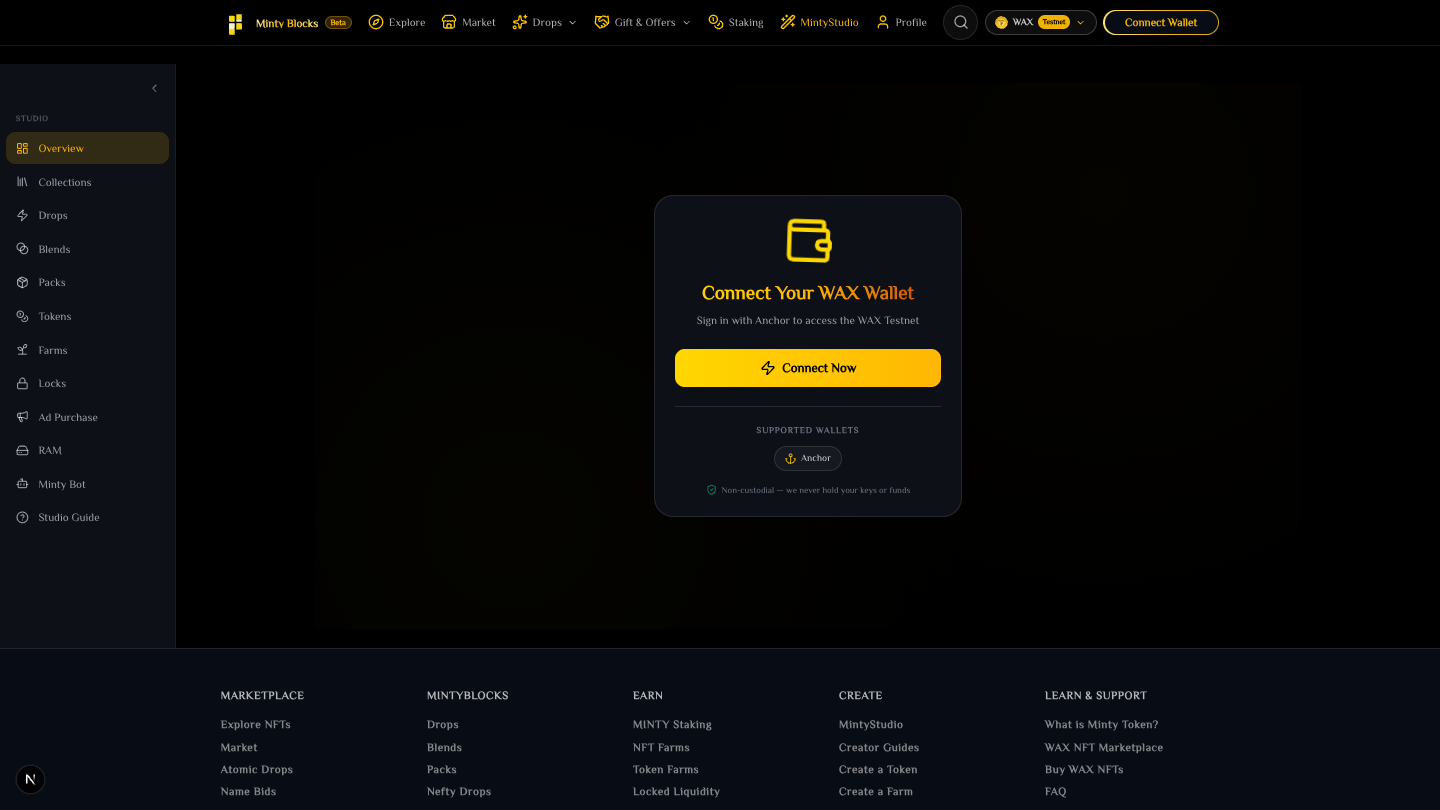
MintyStudio sidebar with the Tokens, Farms and Locks sections— tap to enlarge - 2
Open MintyStudio → Tokens
Connect your wallet, then pick Tokens in the Studio sidebar. You will see four tabs: Contract, Create, Manage and Balances. The last three stay locked until you have a contract, because there is nothing to create a token on yet. Everything happens in order, and the page will not let you skip ahead.
The Tokens entry in the MintyStudio sidebar— tap to enlarge - 3
Unlock the token tools (one-time payment)
The first time only, you pay once for your account. After that you can deploy your contract and create, issue and manage as many tokens as you like with no further platform fees. The price is shown in USD and converted to WAX at the oracle rate when you sign; your MINTY staking tier discount applies automatically, and at the top tier it is free and unlocks in one click. You sign once, your wallet sends the payment, and we read that exact transaction back from the chain to confirm the amount before unlocking — nothing is taken on trust. WHY ONE PAYMENT AND NOT PER TOKEN: deploying is signed by you on your own account, so no contract of ours sits in that path to charge you. WHY BEFORE THE DEPLOY AND NOT BUNDLED WITH IT: a deploy can fail on resources after money has moved, and charging separately means your access survives a failed attempt — you fix the RAM and try again rather than paying twice.
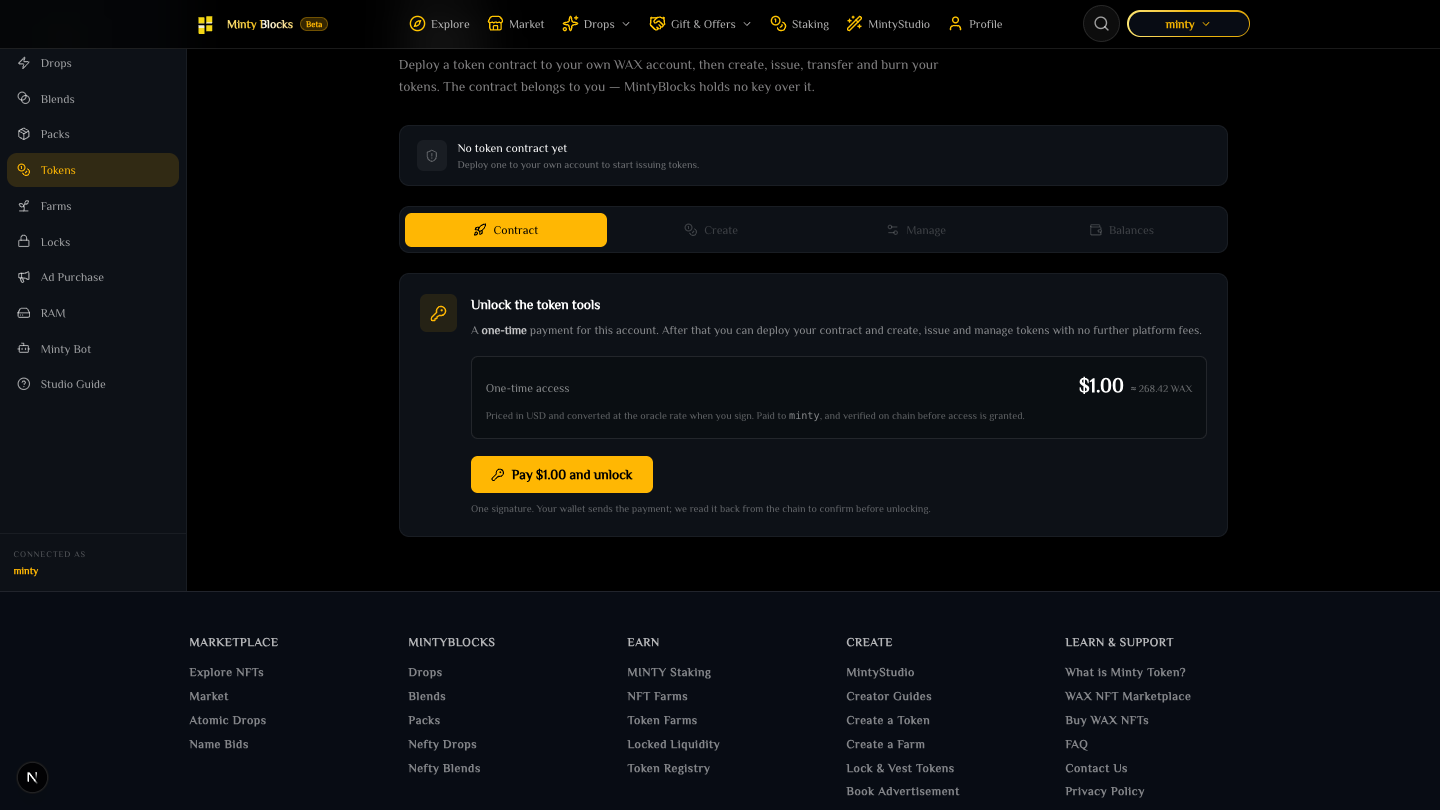
The one-time unlock panel showing the price and what it covers— tap to enlarge - 4
Check your account is ready
The Contract tab reads your live account and shows a checklist. FREE RAM: about 500 KB. The contract code is stored on chain permanently, on your account — roughly 10x the code size. This is the real cost of deploying, and RAM is recoverable: you can sell it back if you ever remove the contract. AVAILABLE NET: about 50 KB in a single transaction. This is far more than a lightly-staked account can send and it is the check most people fail first. AVAILABLE CPU: about 15 ms, which is small and refills over 24 hours. NO CONTRACT IN THE WAY: if your account already runs a different contract, deploying would overwrite it — the panel refuses and tells you to use a different account. Anything red tells you the exact shortfall, e.g. "Buy at least 476,722 more bytes". Fix it, press Re-check, and the panel re-reads the chain. Nothing is charged for a failed check.
- 5
Deploy — you will sign twice
Press Deploy and approve BOTH wallet prompts. The first uploads the code, the second uploads its interface (the ABI) so wallets and explorers can read your contract. They cannot be combined: together they exceed what a single WAX transaction is allowed to carry, which is why you are asked twice. Afterwards the backend re-reads your account code hash from the chain and confirms it matches the official build — if it does not, your contract is still listed but flagged "Unrecognised build". IF THE SECOND SIGNATURE FAILS: your account has the code but no interface, and wallets cannot read it. This is recoverable — go back to the Contract tab and deploy again. Nothing is lost and the RAM is not spent twice.
The account readiness checklist before deploying— tap to enlarge - 6
Create your token — the two permanent choices
TICKER: 3-7 uppercase letters, unique on your contract (not across WAX — two creators can both have GOLD, and those are different tokens). A green tick means it is free on yours. DECIMALS: PERMANENT. 4 is typical on WAX; 8 matches WAX itself. Every amount you ever type must use exactly this many decimal places — with 4 decimals, "1.00 MYTKN" is rejected and "1.0000 MYTKN" is accepted. Pick 0 only if fractional amounts should be impossible (tickets, memberships). MAXIMUM SUPPLY: a hard ceiling the contract enforces. It can NEVER be raised, by you or by us. ISSUE TO YOURSELF NOW: optional — issue some or none up front and the rest later. As you type, the form checks everything against the chain and stays disabled until the action would actually succeed. A well-known ticker (WAX, USDT, MINTY) gets a warning: not blocked, your contract, your call — but it will not be listed as verified, because holders can too easily be misled.
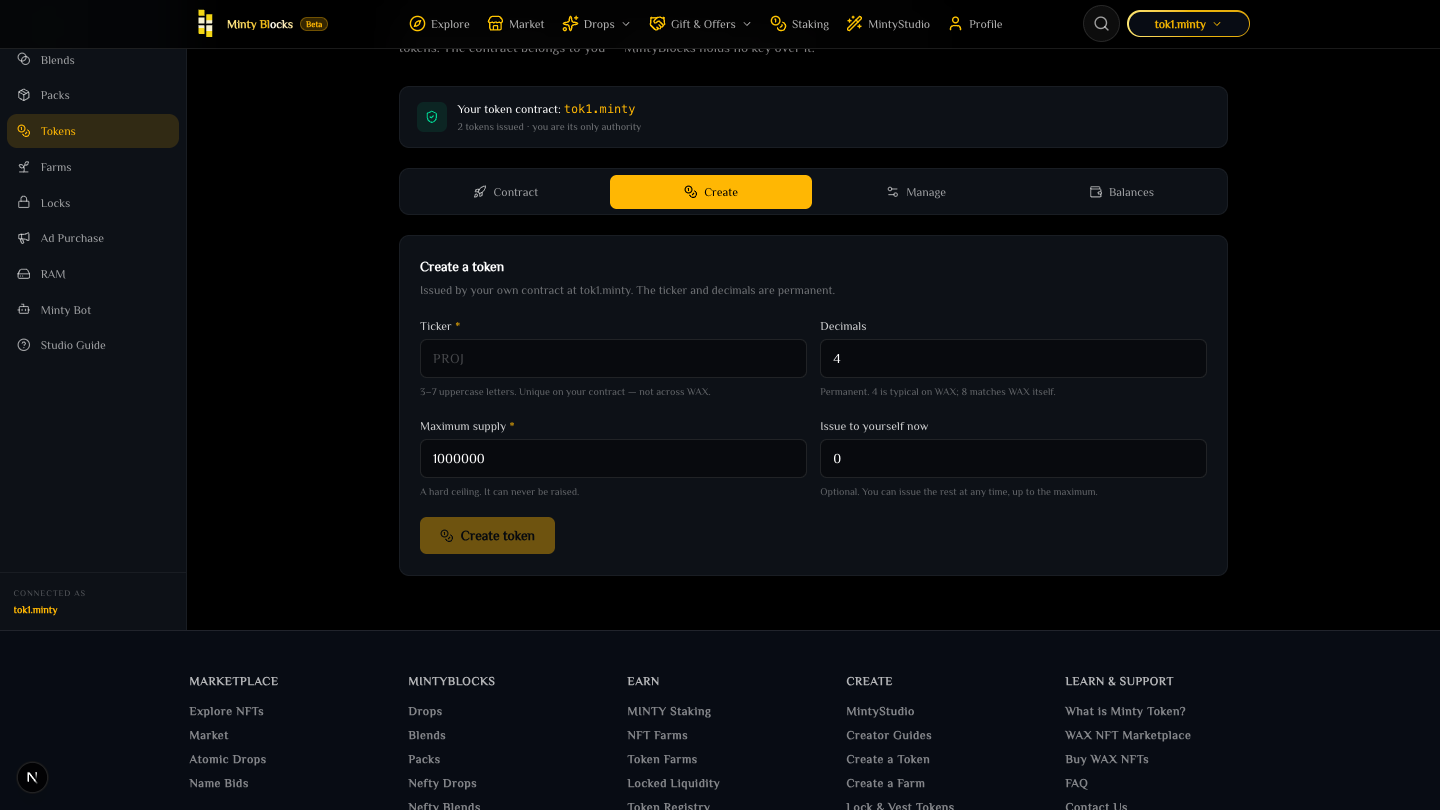
The Create token form: ticker, decimals, maximum supply— tap to enlarge - 7
Worked example — a 1,000,000 supply community token
Say you want ONEUP: 1,000,000 total, 4 decimals, and you want 200,000 in your own wallet at launch with the rest held back for a farm and a liquidity lock. Ticker ONEUP. Decimals 4. Maximum supply 1000000. Issue to yourself now 200000. After signing you have 200,000.0000 ONEUP in your wallet, the contract reports supply 200,000.0000 of a 1,000,000.0000 maximum, and 800,000 remain issuable whenever you choose. Nobody — including you — can ever push the total past 1,000,000.
- 8
Issue, transfer and burn
The Manage tab handles day-to-day operations. ISSUE mints new tokens up to the maximum and only the issuer can do it; the form tells you exactly how much headroom is left, e.g. "You can issue at most 991,000.0000 MYTKN more". TRANSFER sends tokens you hold, and the recipient account is checked against the chain first — tokens sent to an account that does not exist are lost, and this is the single most common way people lose funds on WAX. BURN destroys tokens you hold and permanently reduces supply; you cannot burn tokens held by someone else, because no token contract can reach into another account’s balance. CHANGE ISSUER hands the exclusive right to issue and burn to another account — useful for handing a project to a DAO or multisig, and ONE-WAY: you cannot take it back, so check the account name twice.
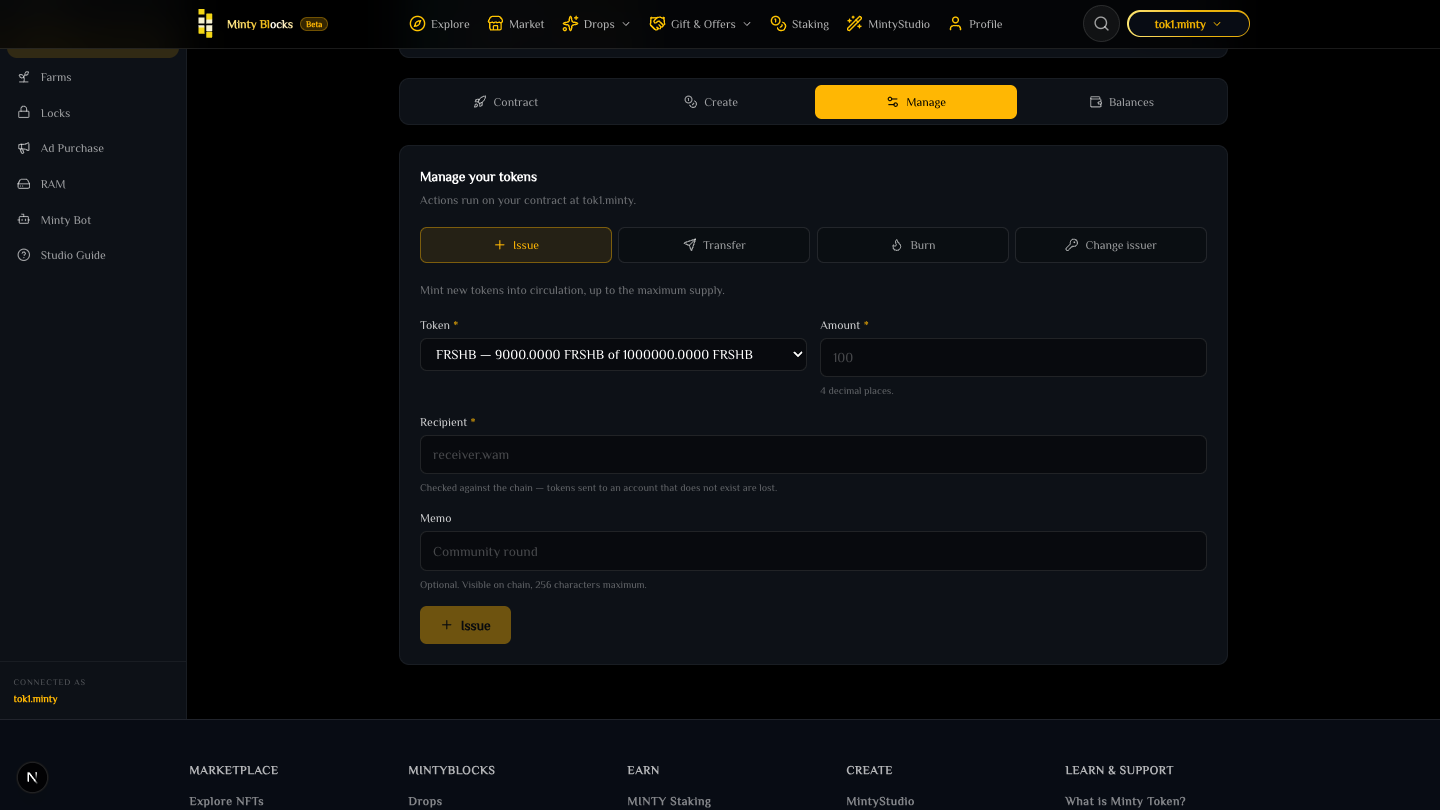
The Manage tab with issue, transfer, burn and change issuer— tap to enlarge - 9
Check the result
Your token appears in the Balances tab with the issuing contract next to it, and — once our indexer picks it up — in the public token registry at /tokens. Every listing shows the contract alongside the ticker, because the ticker alone does not identify a token. Send a small amount to a second account you control and confirm it arrives before you announce anything.
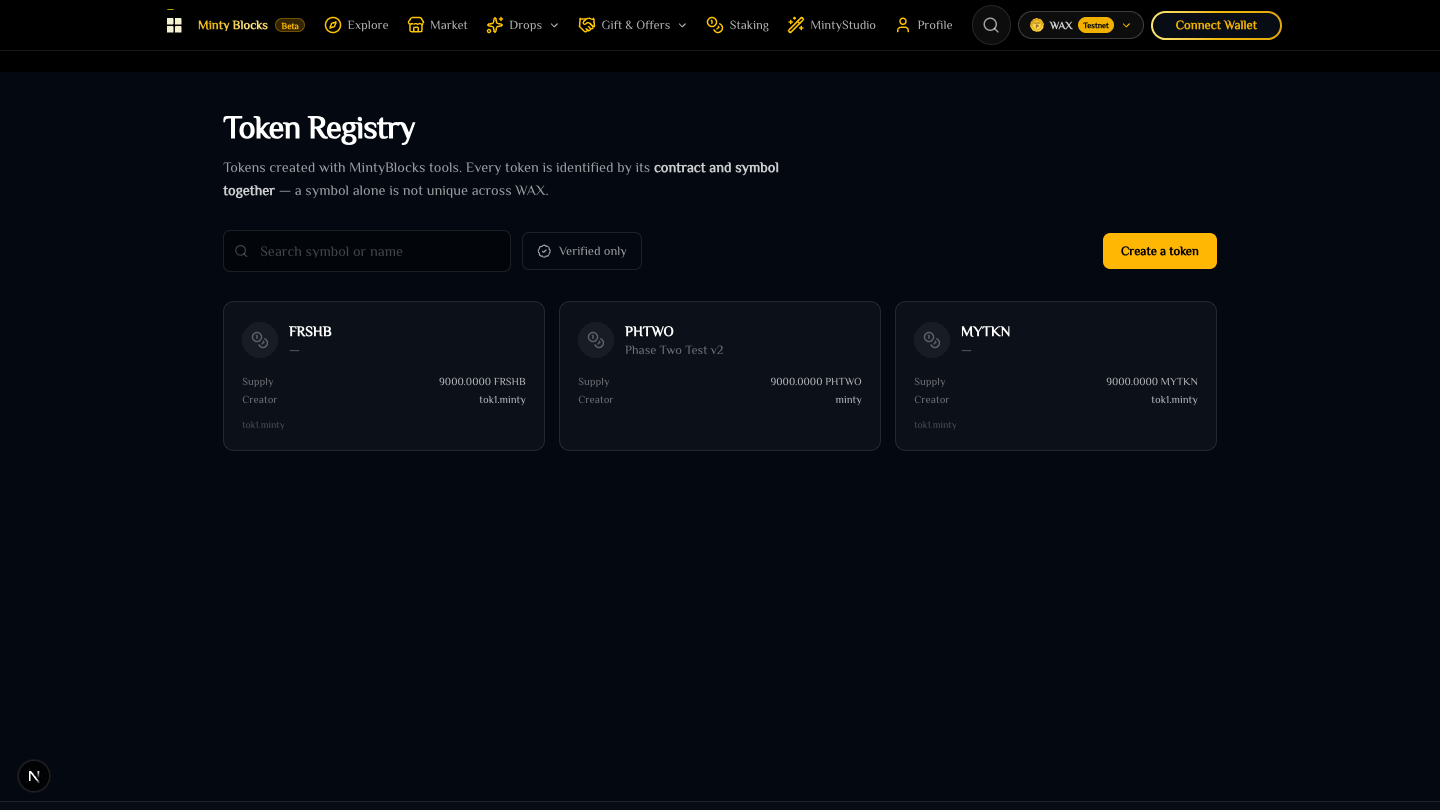
The public token registry listing third-party tokens with their contract— tap to enlarge
There are no mintable, burnable or freeze switches
Those existed when tokens shared one platform contract, to restrain tenants. On a contract you control they would be theatre — you hold the key that could flip them back at any time. What actually constrains your supply is the maximum, which the contract enforces and nobody can raise. If you want to prove you will not dilute holders, set a maximum you can live with and lock or vest your own allocation; that is evidence, where a switch you control is not.
Common mistakes
Choosing 2 decimals then finding you cannot price anything finely — decimals are permanent, so use 4 unless you have a reason. Setting a maximum supply "to be safe" that is far higher than you need, which reads to holders as unlimited dilution. Typing an amount with the wrong number of decimal places and assuming the site is broken. Handing the issuer role to an account you do not control the keys for. Sending tokens to an account with a typo — always send a test amount first.
What we can do about a fraudulent token
We can delist it from the registry and revoke its verified badge. That is the full extent. We cannot freeze it, seize it, reverse transfers, or stop the issuer minting more — the contract is on their account and has no action that would let anyone else do those things. Anyone claiming otherwise about a WAX token on a self-owned contract is mistaken.
A verified badge is not a safety rating
It attests that we reviewed the metadata — name, logo, links and social accounts are consistent and the project is who it says it is. It says nothing about whether the token is a good investment or whether the issuer will behave. Verified tokens can still go to zero.
Ready to try it?
Open MintyStudio and start building on WAX.
Related guides
Looking for general questions instead? Visit the MintyBlocks FAQ · All MintyStudio guides